Showing posts with label Basic Computer. Show all posts

Thursday, 29 August 2013

How to Change Window 7 Password when you forget your Current Password

How to Change Window 7 Password when you forget your Current Password

1- Click on Start button type Run & Hit enter. Or Simply press windows key+R.
computerknowledgefree.blogspot.com

2- type compmgmt.msc in Run.
computerknowledgefree.blogspot.com

3- Computer Management windows will appear, Select System Tools from right window panel.

4- In left side menu just double click on Local Users and Groups then click on Users.
computerknowledgefree.blogspot.com

5- Now here you will see all the login accounts of your computer.
6- Right click on any, the account whose password you want to change and then click on Set Password.
7- A warning message will open on your screen just click on Proceed.
computerknowledgefree.blogspot.com

8- Now enter your New Password and click  OK.
computerknowledgefree.blogspot.com
Enjoy..!

Wednesday, 14 August 2013

How to Hide Folder.

Windows offers an easy way to quickly hide folders from unsuspecting eyes. This procedure requires that Windows does not show hidden files and folders. So to start with, you require to check this setting: 

Open Windows Explorer (open any folder) and go to ==> Tools ==> Folder options…
Within Folder Options switch to the ==> View tab.
Under ==> Files and Folders find the option ==> Hidden files and folders and select ==> Do not show hidden files, folders, or drives.
Click ==> OK and proceed to hiding a folder.
http://computerknowledgefree.blogspot.com/

To hide a folder do the following:

Right click the folder you want to hide & select ==> Properties.
In the ==> General tab check the option ==> Hidden.
Go to ==> Advanced change archive and index attributes.
Click ==> OK to save your changes.
computerknowledgefree.blogspot.com

Saturday, 27 July 2013

How to Back Up to your system?

There are many steps to save data with backup regularly.

Back up regularly your data. It is important factor for you to get backup your files and folder on a regular basis. Because in this global network a computer can crash, a virus, or a hard drive failure can wipe out everything. Don’t make this mistake, It depend upon you and your data importance but better technique is that back up everything at least once a week. But if you use your computer daily, it is best to back up important files daily and other data weekly.

Keep several backup copies of same backup. Never back up over a previous backup copy, always try to keep several copies over time so that if one time one back create problem you can user others.. Remember, a problem that is backed up will remain a problem when restored!

Easy way for backup using Be selective method. You don’t have to do a total system backup of your system over time, If your are doing so, you are wasting your time. Just back up your important files, folder and photos. Backing up the entire hard drive is time-consuming, not practical, and should not be done. A backup of specific data files is the way to go. But a best technique is that first install your all computer program and system drivers then do a backup using any third party software (cloning software) like Norton ghost or others of your C drive once, this backup will help you to restore your all computer program in 15 min in case of any problem and do important data backup daily or weekly.

Friday, 26 July 2013

5 Facts About Internet Crime and Punishment.

The world we live in is becoming increasingly dominated by digital technology, and with this has come the emergence of cybercrime. A cybercrime is any kind of crime which targets technology, or uses technology to further criminal ends. But how do you police an internet which crosses international borders and oceans, in which the perpetrator and the victim can be separated by millions of miles?

1) Piracy/Copyright Infringement.

Piracy of music, films and TV shows wasn’t invented by the internet, but it was one of the first types of cybercrime to emerge. File sharing programs and websites make it easy for people to download and watch or listen to copyrighted material that they didn’t pay for. Copyright infringement is illegal in the UK, but identifying offenders and justifying the cost prosecution of them is a serious obstacle to enforcement.

Currently action must be sought by the copyright holders, once they know their copyright is being infringed. Most legal activity surrounds blocking those websites which distribute pirated material. The 2010 Digital Economy Act requires ISPs to send letters to customers who download pirated material however prosecutions have not been forthcoming.

2) Child Pornography.

Child pornography is another crime which has flourished on the internet. With the distribution of images made so much easier all around the globe, many countries struggle to understand what they should be prosecuting. Under UK law it is illegal to make, take, possess, distribute or show indecent images of those under the age of 18. All of the above are punishable by 10 years imprisonment, fines and registration on the sex offenders register.

3) Child Grooming.

Child grooming occurs when an adult makes friends with an individual under the age of 18 (often on chat rooms or children’s game sites), usually with the aim of meeting and engaging in sexual activity. The Sexual Offences Act of 2003 added to the existing raft of child protection laws to ensure that internet grooming is punishable by up to 10 years imprisonment, in line with other child protection laws.

4) Online Fraud and Identity Theft.

With so much of our lives on line (banking, socialising, working) it is easier than ever for people to become the victim of identity theft online. Phishing schemes usually target bank and credit card user by getting them to log in to a fake webpage. Once they have your details, fraudsters can run up bills online, use your identity to obtain medical services or to cover illegal activities. Currently in the UK the Data Protection Act of 1998 is used to protect users from online fraud, but commentators believe that additional legislation will soon be required, as nearly 50% of all frauds recorded are identity theft.

5) Cyber Terrorism.

Cyber terrorism is the act of an individual or group using internet based attacks to disrupt the operations of a company or government body. As we rely more in our day to day lives on computer networks, so the risk of disruption if a service is interrupted grows. Imagine the chaos if a town’s traffic control system was disrupted, or the air traffic control at an airport. Hacking and cyber-attacks are illegal under the UK’s Computer Misuse Act, punishable by imprisonment and fines. UK-based hackers may be extradited to face the consequences of their actions overseas.

The digital age is in a constant state of development but so is the law, and many types of cybercrime are already punishable by existing laws. It is easy to imagine that distanced as they are from the physical scene of the crime (be it a hacker breaking into a government server a hundred miles away, or an individual downloading child pornography from a thousand miles), that they are insulated from the law. But it simply isn’t true. Ranging from fines to custodial sentences, cybercrimes are punishable under UK law, and it is a law which is changing daily to adjust to the differences of crimes in the digital world.

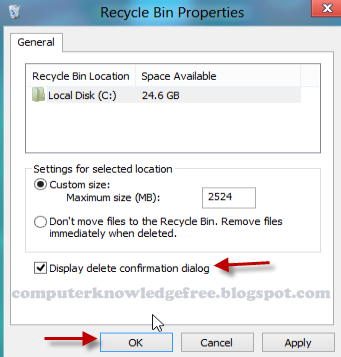
Remove Annoying Delete Confirmation Messages In Windows


Although not strictly a performance tweak I love this fix as it makes my machine ‘feel’ faster. I hate the annoying ‘are you sure?’ messages that XP displays, especially if I have to use a laptop touchpad to close them. To remove these messages:

1. Right-click on the ‘Recycle Bin‘ on the desktop and then click ‘Properties’

2. Clear the ‘Display Delete Confirmation Dialog‘ check box and click ‘Ok’

If you do accidentally delete a file don’t worry as all is not lost. Just go to your Recycle Bin and ‘Restore’ the file.

Thursday, 25 July 2013

The 3 Basic Computer Operations.


Input: Information and programs are entered into the computer through Input devices such as the keyboard, disks, or through other computers via network connections or modems connected to the Internet. The input device also retrieves information off disks.

Output: Output Devices displays information on the screen (monitor) or the printer and sends information to other computers. They also display messages about what errors may have occurred and brings up message or dialog box asking for more information to be input. The output device also saves information on the disk for future use.

Processing: The CPU or central processing unit is sometimes called the Control Unit and directs the operation of the input and output devices. The Coprocessor or the Arithmetic-Logic Unit does arithmetic and comparisons. The memory or RAM temporarily stores information (files and programs) while you are using or working on them. The BIOS or basic input/output system controls the dialogue between the various devices.

Best 10 Things You Have To Know To Be Computer Literate

1: Search engines

Using a search engine is more than typing in the address, putting a couple of keywords into the big text box, clicking Search, and choosing the first result. While that may work, it won’t give you the best results much of the time. Learning the advanced search, Boolean operators, and how to discern good results from bad results goes a long way toward enabling you to use a computer as a powerful research tool.

2: Word processing

Word processing is one of the oldest uses for a computer. And it continues to be extremely important, even though in many ways its functions have been put into other applications. (For example, people may write more emails than documents, but the task is nearly identical.) It is tough to claim to be computer literate if the basic functions of word processing like spell check, table creation, and working with headers are outside your capabilities.

3: Spreadsheets

Spreadsheets were the killer application that got a lot of people willing to pony up big bucks for a PC in the early 1980s. Spreadsheets offer incredibly powerful analysis possibilities… if you know how to use them for more than storing the holiday card address list. (Okay, I use Excel for that too.) Being able to use formulas, references, and macros can turn a “grid of numbers” into actionable information in the hands of the right person.

4: Browser basics

It is almost painful to watch some “computer savvy” people operate a Web browser. The most obvious goof is going to a search engine to type in the address of the site they want to go to. But folks are unaware of a lot of other things they do that make the Internet more difficult than it needs to be. Mastering techniques like opening links in new windows, using bookmarks, editing URLs to perform navigation, clearing the browser cache, and understanding common error messages will give you access to a world of unlimited information instead of keeping you stuck with only what Web site designers make obvious.

5: Virus/malware scanning

Much of typical computer maintenance is automated or unneeded at this point, but it is still essential to understand how to check a system for nasty bugs, spyware, and other malicious applications. While the scanning tools come with real time monitors, something can still slip onto the system before the scanner has the right filter for it. So it’s critical to know how to trigger a manual virus/malware scan, as well as how to use alternative systems, spot signs of an infection, and other similar tasks.

6: Common keyboard commands

If you do not know how to copy/paste without a mouse, you are not computer literate. Sorry! Every operating system has some universal keyboard commands, and while knowing them won’t add 30 minutes back into your day, it will take a lot of the “friction” out of using a computer. Learning these commands is more a matter of routine than anything else; a short tutorial done once a day for a week will probably be enough to put you in the habit, and it will make you a happier user.

7: Basic hardware terminology

It is tough to have someone help you with a problem when you tell them that your “hard drive” is unplugged, when you really mean “the computer.” There are a number of common hardware misunderstandings out there, and while some are understandable (for instance, confusing a NIC with a modem the cables look similar and they serve the same purpose, networking), knowing basic hardware terminology is a must-have skill to be a savvy user.

8: Simple networking diagnosis

Networking problems create the most common trouble with most computers. While you don’t need to be able to program a Cisco router, you should know how to:

Determine your IP address
Verify physical connectivity to the network
Check that you have a logical connection to the network
Find out what path network traffic takes to get to its destination
Translate from DNS names to IP addresses

9: How to hook it up

Despite the color coding of connections and the fact that most cords can be plugged into only one hole, tons of people still can’t hook up a computer. It is tough to claim to be computer literate if you can’t even get it hooked up and turned on without some help.

10: Security/privacy 101

It is a dangerous world out there! You absolutely must know how to protect yourself from attackers on the Internet and keep your personal data private. Everything from knowing to check a link before you click it to verifying that encryption is being used to transmit sensitive data to researching sites before giving them your personal data are all critical skills for the modern computer user. If you do not know how to keep yourself safe, you need to learn how.

Basic Typing Rules

Place one space between each word, after a punctuation mark and at the end of a sentence. Always start a sentence with a capital letter. Use capitals for names, addresses, provinces and countries, places, organizations, businesses, associations, schools, colleges, universities, days of the week, months, holidays, nationalities, ethnic groups and languages.

Learning the keyboard is the first step to learning computers. Learning involves practice. It really is as simple as that. There are two kinds of typing.

The first is called Touch Typing. The Touch Typist uses the Home Keys asdf for the left hand and jkl; for the right) and all the fingers on both hands as well as the thumbs for the Space Bar while typing. There are many commercial and public domain programs that are designed to teach this method.

The other method is some times called 'Hunt and Peck' or depending on finger strength 'Search and Destroy'. This involves using one or more fingers on one or two hands to type. It is a perfectly acceptable way of using a computer and many people get along fine with this technique