Showing posts with label Security Tips. Show all posts

Wednesday, 14 August 2013

How To Check Your Antivirus Is genuine Or Not.

This trick will help you check that your antivirus is genuine or not or you can say that your antivirus is working properly or not , here are some steps just follow them and enjoy

1- First of all press windows logo key + R to open Run command and type notepad here to open notepad.
How To Check Your Antivirus Is genuine Or Not

2- Copy and paste the below code into your notepad.

X5O!P%@AP[4\PZX54(P^)7CC)7}$EICAR-STANDARD-ANTIVIRUS-TEST-FILE!$H+H*


How To Check Your Antivirus Is genuine Or Not

3- After that press CTRL + S to save this file, here save this file as CKF.vbs on desktop
How To Check Your Antivirus Is genuine Or Not

4- If your antivirus is genuine then it can allow you to save this file on desktop i.e. It will detect as virus & delete it and if your antivirus is fake then it will allow you  to save this file.
How To Check Your Antivirus Is genuine Or Not

How to Hide Folder.

Windows offers an easy way to quickly hide folders from unsuspecting eyes. This procedure requires that Windows does not show hidden files and folders. So to start with, you require to check this setting: 

Open Windows Explorer (open any folder) and go to ==> Tools ==> Folder options…
Within Folder Options switch to the ==> View tab.
Under ==> Files and Folders find the option ==> Hidden files and folders and select ==> Do not show hidden files, folders, or drives.
Click ==> OK and proceed to hiding a folder.
http://computerknowledgefree.blogspot.com/

To hide a folder do the following:

Right click the folder you want to hide & select ==> Properties.
In the ==> General tab check the option ==> Hidden.
Go to ==> Advanced change archive and index attributes.
Click ==> OK to save your changes.
computerknowledgefree.blogspot.com

Thursday, 1 August 2013

Hide Full Drive Partition.

It is often seen that lots of people require to secure their personal data from other users or their friends.They use different methods for this purpose to hide their personal data but all these tricks are not reliable. But now I am telling you a useful trick to hide full drive. You can put all of your personal data in a drive & after applying this trick it is possible for you to to hide full drive. To learn this trick, follow these given below steps.

  • First of all you muse be logged in to administrative account.
  • Click on Start, open Run and type “CMD” and press Enter.
  • Type “diskpart” and press Enter.
  • After some seconds diskpart utility will appear.
  • Now type “list volume” to show list of volume and press Enter.
  • Select the Drive or volume that you want to hide. In case you have drives C,D,E,F, and you want to hide “F” drive, then type “select volume 4”  and press Enter.
  • Now in the next step type "remove letter F" to hide this drive.
  • Close CMD & open My computer to check drive F is not there…


  • Now if you want to show the hidden drive then in step 7 type “assign drive f” and check “My computer”.Your Drive is back now.


  • Excellent and useful trick, try it now.


Test Your Anti-Virus Using Notepad.

This trick is used to check antivirus activity. If you seem that your antivirus software is not working well then you can confirm it by using this trick.

  • Open Notepad and type the following code

X5O! P% @ AP [4 \ PZX54 (P ^) 7CC) 7} $ EICAR-STANDARD-ANTIVIRUS-TEST-FILE! $ H + H *
  • Now save it with extension “exe” (like antivirus.exe).see image below
  • If your Anti-Virus is working properly, you will first require to find antivirus.exe file as soon as feasible & will try to remove the file.
  • If you try to remove the file on your Anti-Virus and Anti-Virus are working properly, but you know  I do not try to remove it if you can install a new Anti-Virus.


Lock Your Folder Without Any Software.

If you want to save your personal files in a folder at home or in office, then you need to lock that folder. There is much program available in market to lock folder but I am telling you a new trick which locks a folder without any software.


  • At first create a folder in any drive in which you want to keep your personal files.  For example in drive D: create a folder and rename it. You can write any name that you just like. Here we write folder name “My Folder”.
  • Create a text file in the same drive.
  • Type,
  • ren My Folder My Folder.{21EC2020-3AEA-1069-A2DD-08002B30309D}
  • Save this text file as (hide.bat), you will see a bat file in the drive.
  • Again create another text file & type…
  • ren My Folder.{21EC2020-3AEA-1069-A2DD-08002B30309D} My Folder
  • Save this text file as unhide.bat.
  • Now done.
  • Press “hide” and the “My Folder” folder will change to control penal and nobody can see its contents.
  • Press “unhide” and now you can see your folder in original shape.


Tuesday, 30 July 2013

Tips For The Safety Of Computer.

Here some tips for the safety of computer. You can get better result and performance of computer speed by acting upon these tips. 
  • Do not  turn off your computer during working position of windows.
  • Alway turn off you computer manually by clicking on start menu and select shut down. In case you are not using a mouse then simply press windows key and then press "U key" two times. 
  • Before connecting new hardware i.e CD rom, ram, hard drive etc, Turn off computer completely.
  • Always close CD Rom by pressing its button, do not apply force on the gate of CD Rom.
  • Do not keep your computer near dinning table and also do not keep any liquid or water near your CPU. 
  • Keep you system in airy atmosphere. 
  • You can use AC in your compute room.
  • Do not use water room cooler in front of CPU.
  • Always turn off computer manually & disconnect your computer from the AC current.


Monday, 29 July 2013

How do I enable a Windows 8 picture password?

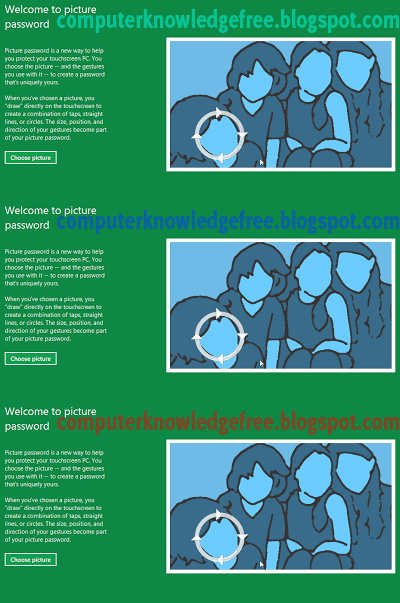
Picture password Picture password is a feature introduced with Windows 8 that allows you to create three different gestures on any image of your choice and use those gestures as your password  The gesture can be any combination of circles, straight lines, & taps. For example if the picture you chose was of a face your picture password could be a tap on each eye and then a circle around the mouth.
Open the Windows Charms. 
Click Settings and then More PC settings 
In the PC settings window click Users and then select Create a picture password.